How to Clean Install or Reinstall Windows 11 on a PC Step-by-Step Guide
by Alan Pfahler on October 23, 2026Warning: Make sure to back up all of your important data (documents, pictures, videos, music, etc.) before you begin this process, you can back up data to another partition (such as D drive) or another disk. Note: If your windows 11 has crashed, you can back up the data in the WinPE environment, check out this post.
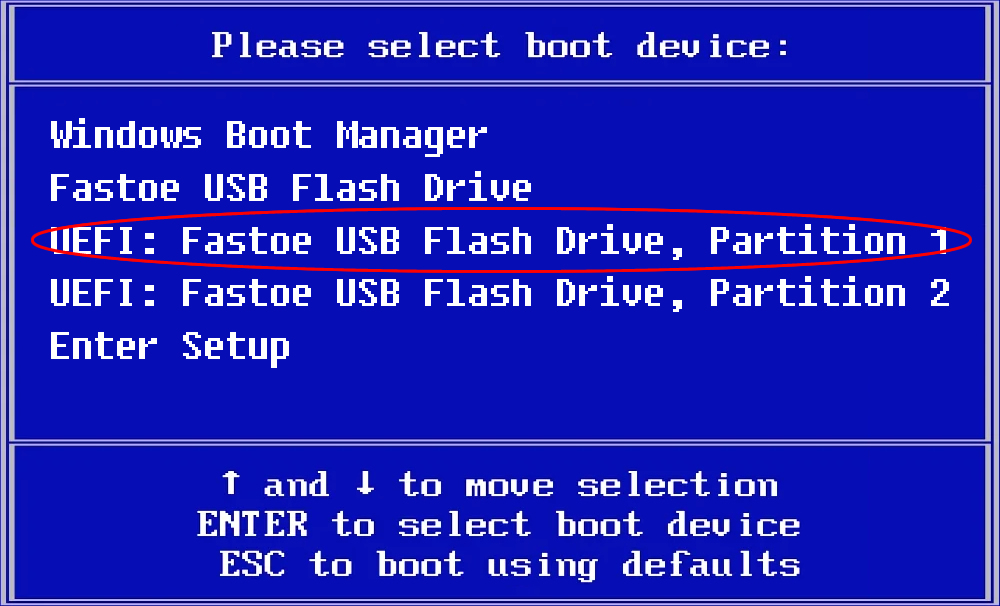
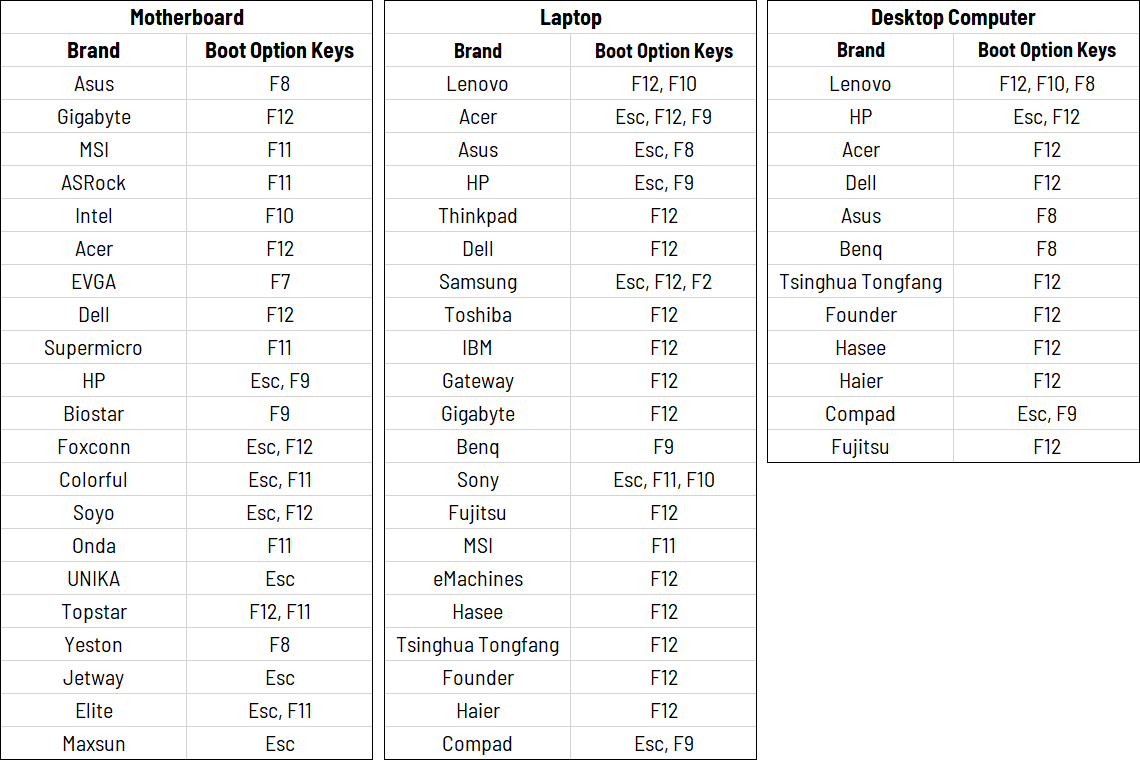
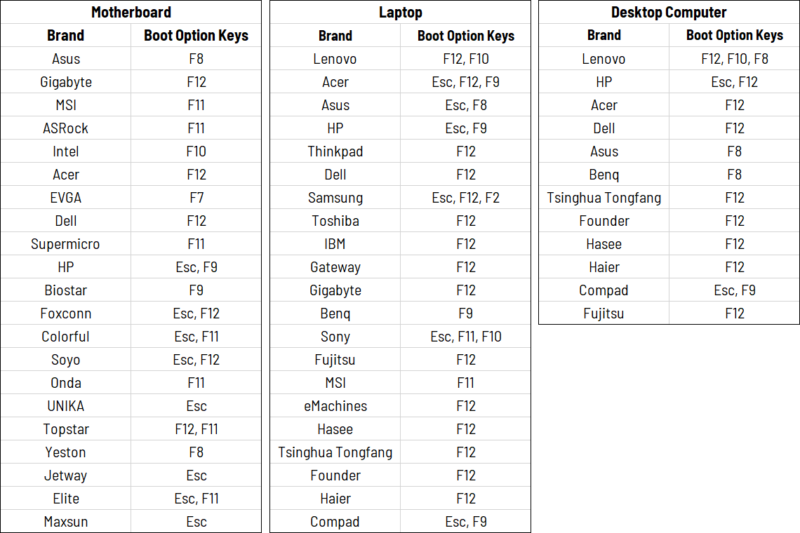
- Insert the Fastoe Windows 11 USB drive to computer. Power on or restart computer. When vendor logo appears on screen, press Boot Option Key repeatedly until Boot Menu appears, select
"Fastoe USB Flash Drive"as a boot device.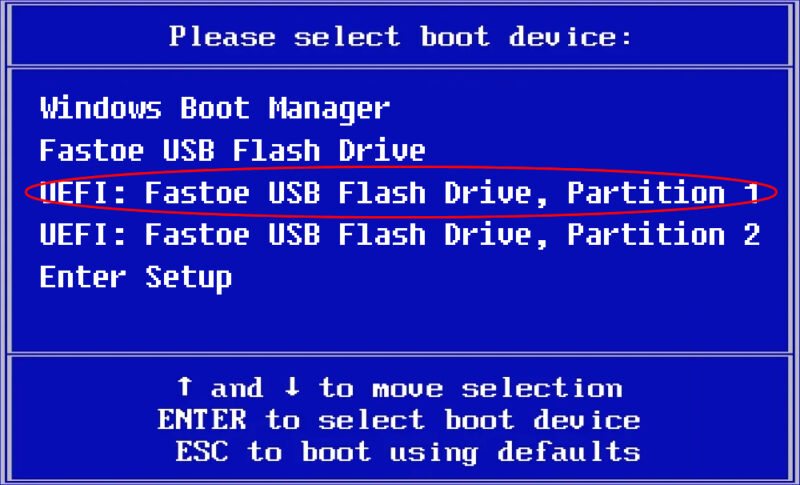 You can find the Boot Option Key for your computer from the following table.
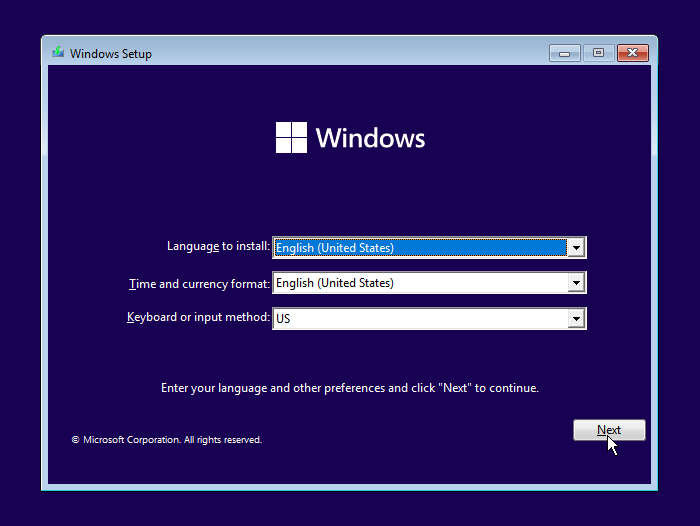
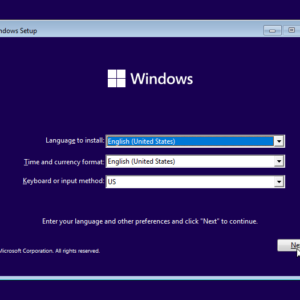
- When the Windows installation screen appears, complete the settings (language, time, keyboard layout, etc.) and click the Next button.
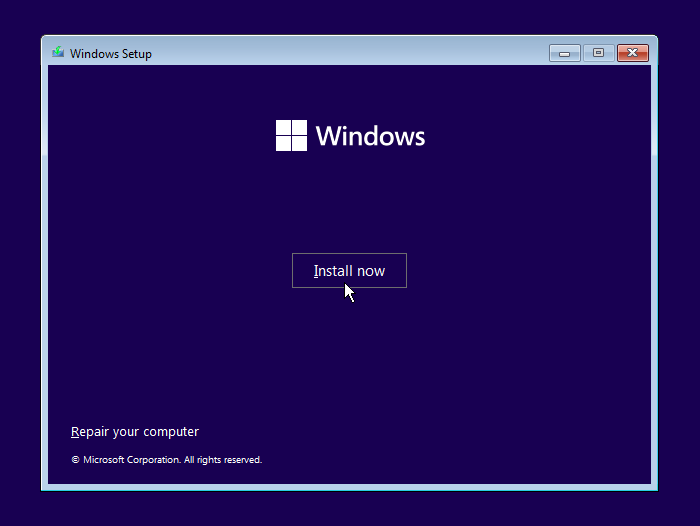
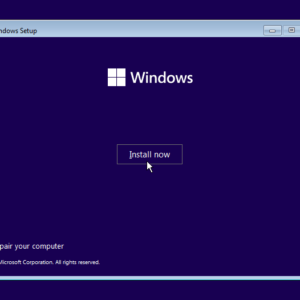
- Click the Install Now button to prepare for Windows 11 installation.
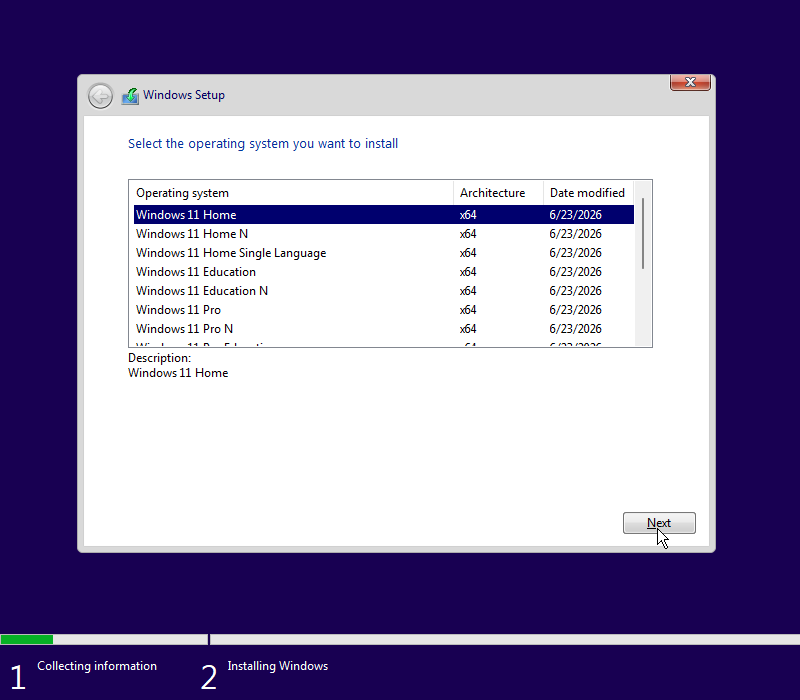
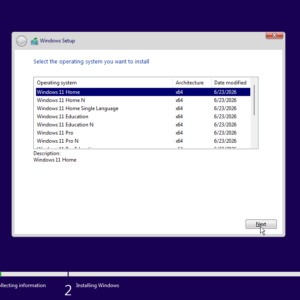
- Select the edition of Windows 11 (Windows 11 Home/Pro N is just windows 11 Home/Pro without Windows Media Player and related technologies pre-installed including Music, Video, Voice Recorder and Skype.), this selection must match the edition of the license activates, and click the Next button.
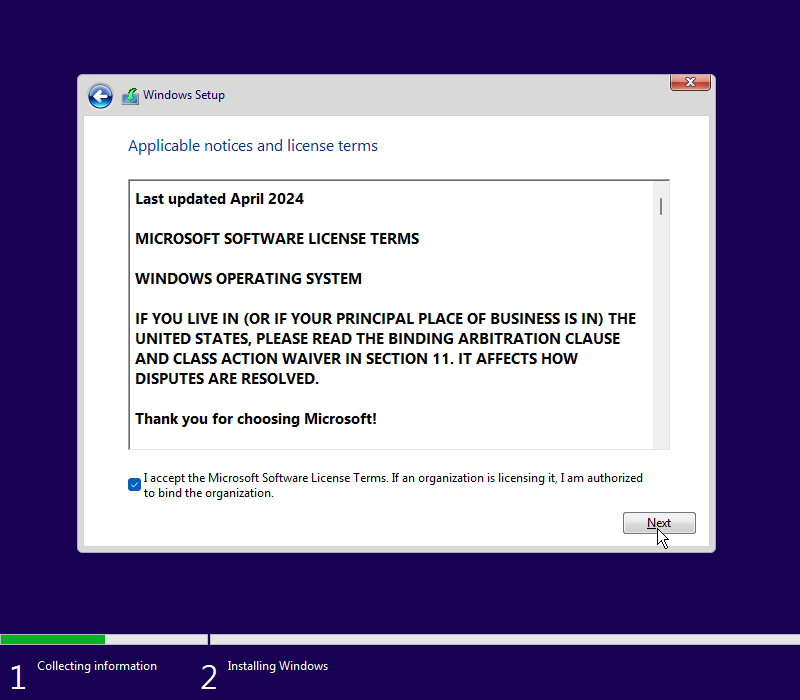
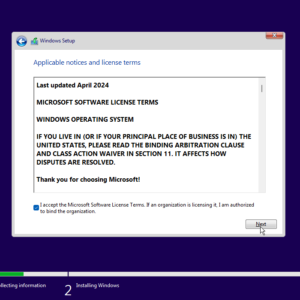
- Check the I accept the license terms option, and click the Next button.
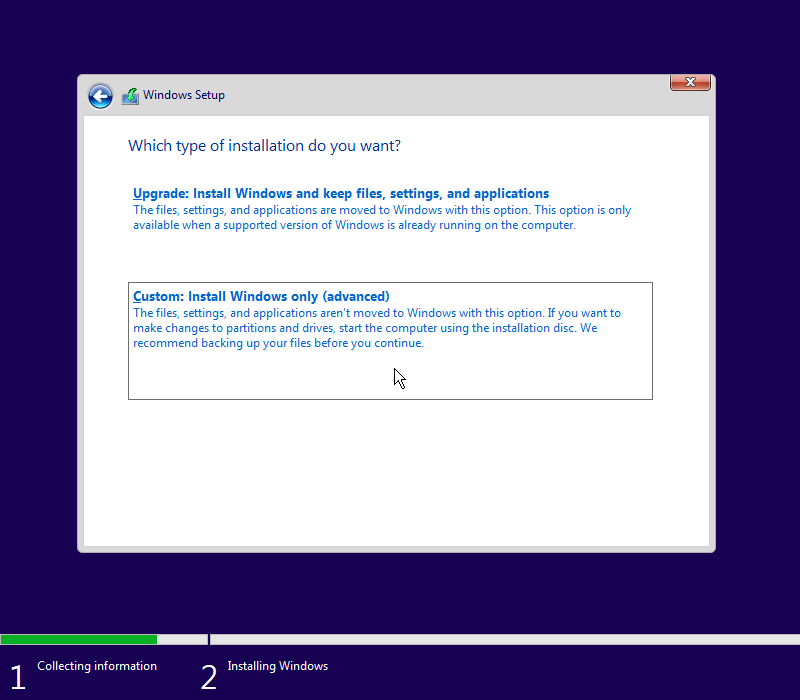
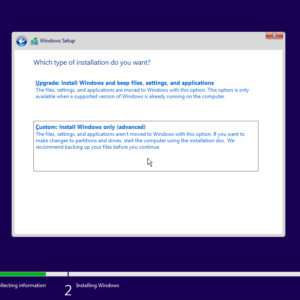
- Click the Custom: Install Windows only (advanced) option to proceed with clean install. Note: All user data will be deleted. Please ensure that you have the corresponding backups.
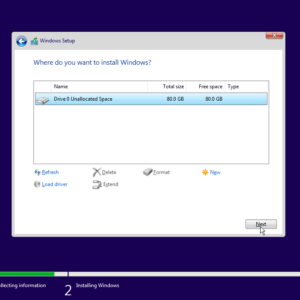
- Select the partition with the current installation of Windows 11 (usually "Drive 0"), and click the Delete button to remove the partition from the hard drive. If you see multiple partitions on the primary hard drive (Drive 0), select and delete each one. Windows 11 will recreate the required partitions during the installation process automatically. It's not necessary to remove the partitions on secondary drives. Warning: Deleting a partition also deletes all data within.
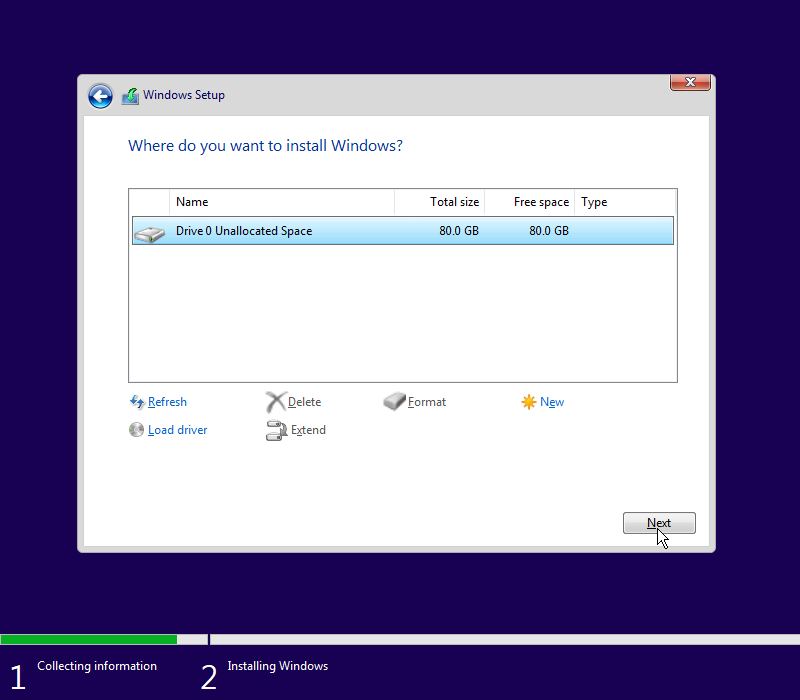
- Select the Drive 0 Unallocated Space, and click the Next button.
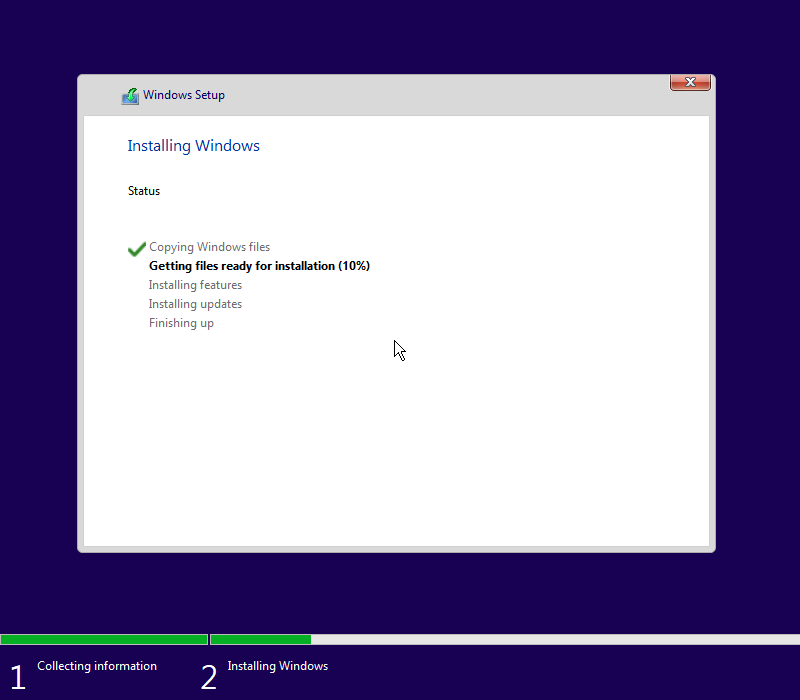
- Wait for Windows installation to complete, after the installation, you'll have to continue with the on-screen directions to finish the out-of-box experience (OOBE) to create a new account, set your preferences, and choose your preferred privacy settings.
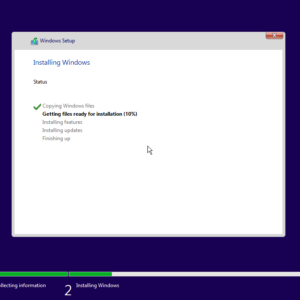 Note: Do not forcibly shut down or turn off the power while Windows 11 installation is in progress. Be sure that the AC adapter, if included with the product, is connected when proceeding with Windows 11 installation.
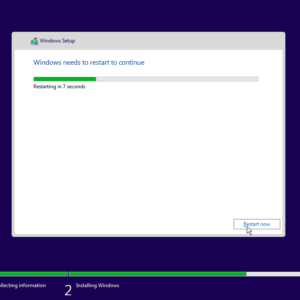
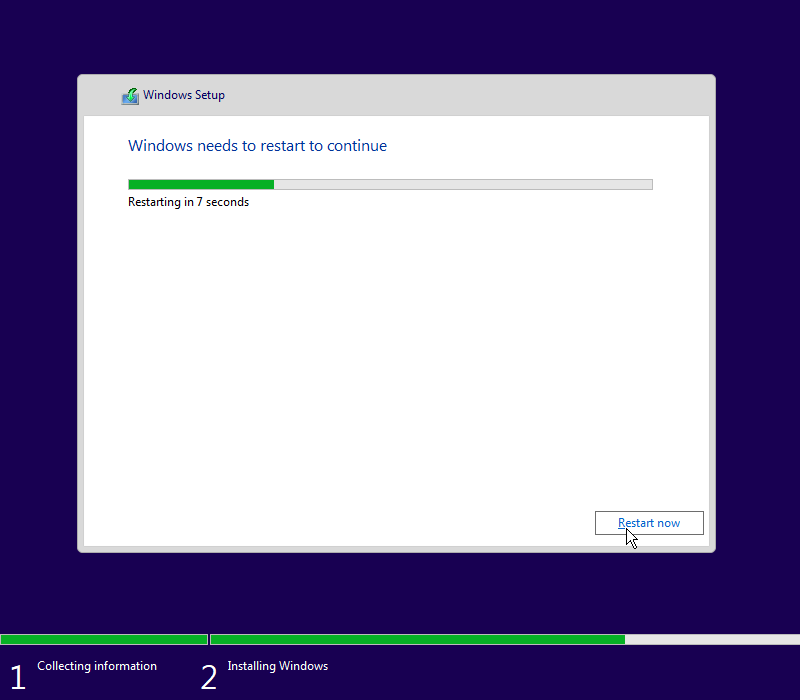
 - Once the installation is done, the Windows 11 setup automatically reboots at least once. Wait for the process to finish, if you see the prompt below, you can skip the waiting by pressing Restart now.