Fix the computer restarted unexpectedly or encountered an unexpected error
by Alan Pfahler on March 26, 2026When you try to install Windows, you'll see that the screenshot displays Windows installation failing with the following error:
The computer restarted unexpectedly or encountered an unexpected
error. Windows installation cannot proceed. To install Windows, click
"OK" to restart the computer, and then restart the installation.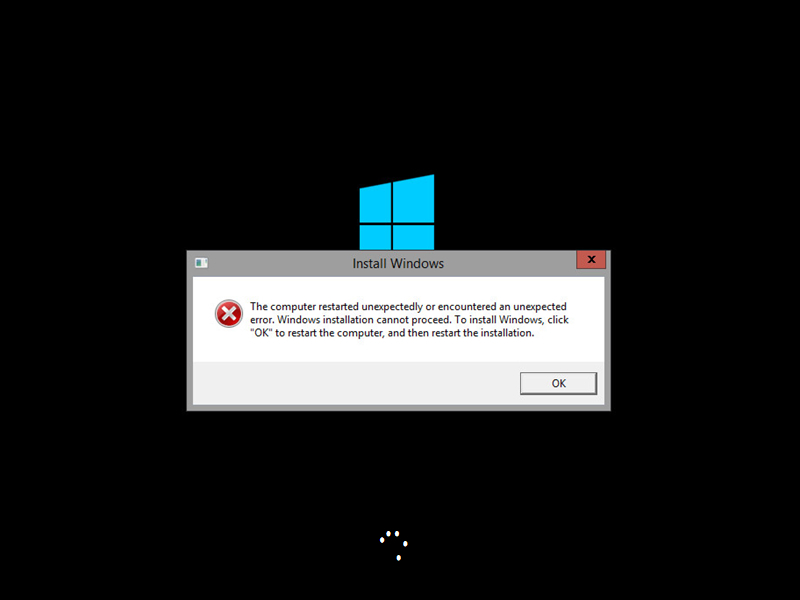
Please follow the steps below:
- On the Windows installation screen, go to command prompt by pressing Shift + F10 key. This should open Command Prompt.
- Type following commands in Command Prompt and press Enter to start Registry Editor:
regedit - Once Registry Editor starts, navigate to the
HKEY_LOCAL_MACHINE\SYSTEM\Setup\Status\ChildCompletionand double click the setup.exe in the right pane. - Change the Value Data from 1 to 3 and click OK to save changes.
- Close Registry Editor and restart your computer.
If none of these solutions work, it may be necessary to reinstall Windows with a Fastoe Bootable USB drive.